
1.Record or Upload
Record a voice note, or choose a supported audio or video file from your device.
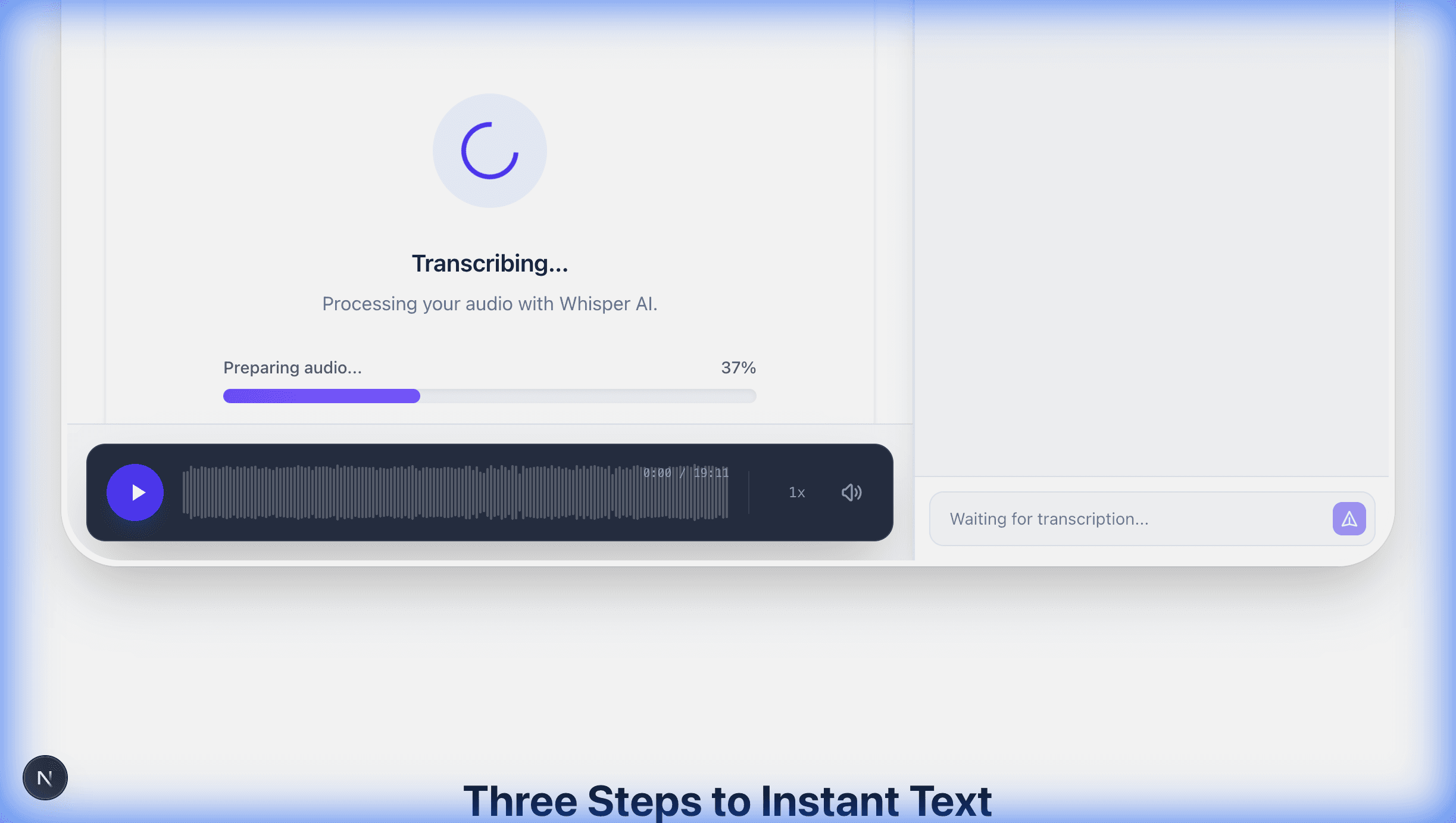
Upload an audio or video file, or record a voice note, and receive an editable transcript. Try recordings up to 5 minutes without an account.
Choose a supported audio or video file, or use the microphone and transcribe after recording
MP3, WAV, M4A, FLAC, OGG, AAC, MP4, MOV, AVI, MKV, WebM
Up to 5 minutes without an account; free accounts receive 15 minutes per day. Files are uploaded securely to the remote transcription service for processing. Privacy details
Upgrade to Pro →Record a voice note, or choose a supported audio or video file from your device.
After recording or upload, send the file to the transcription service and follow its progress.
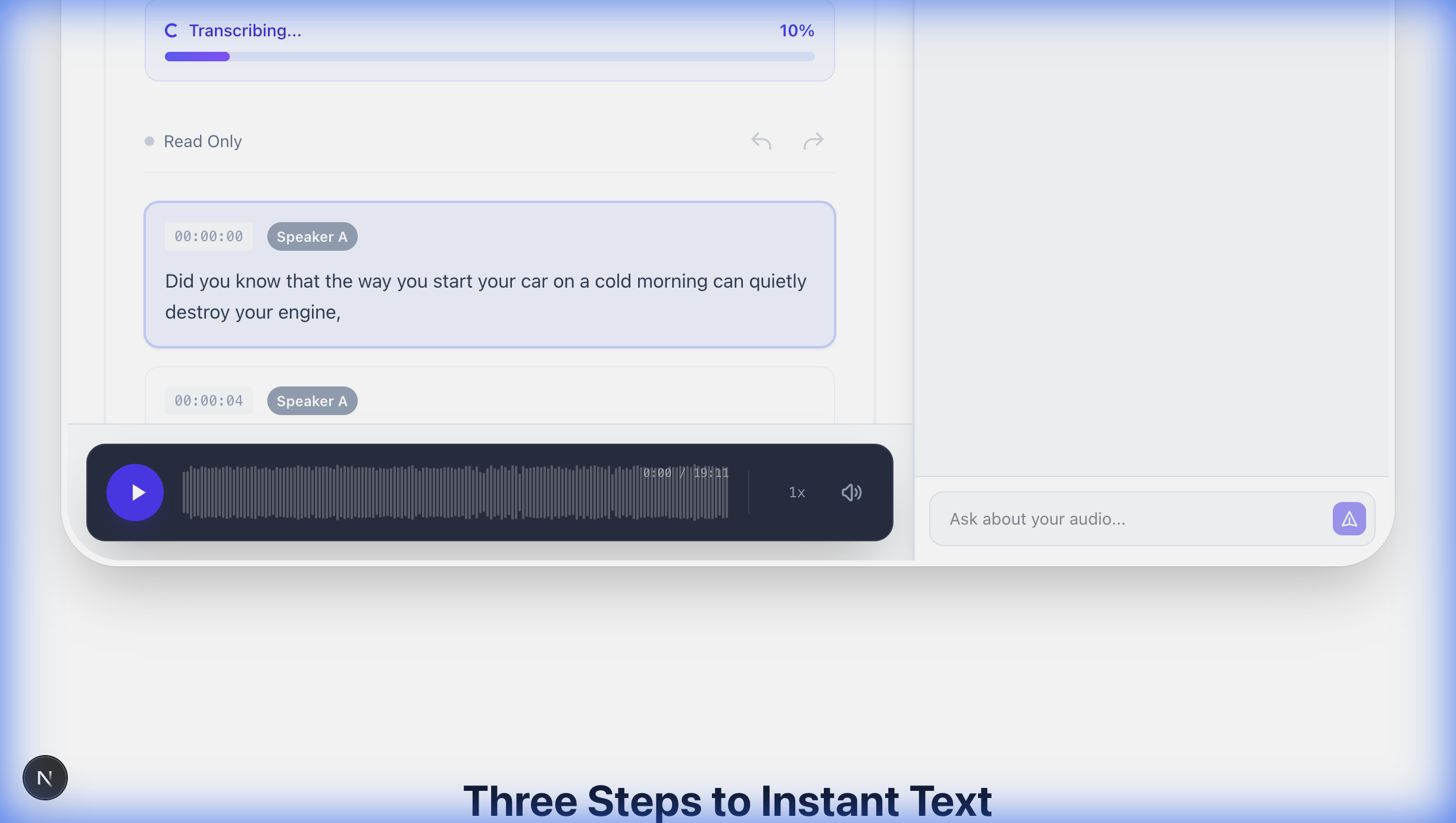
Review and edit the transcript, then copy it or export it in the format you need.
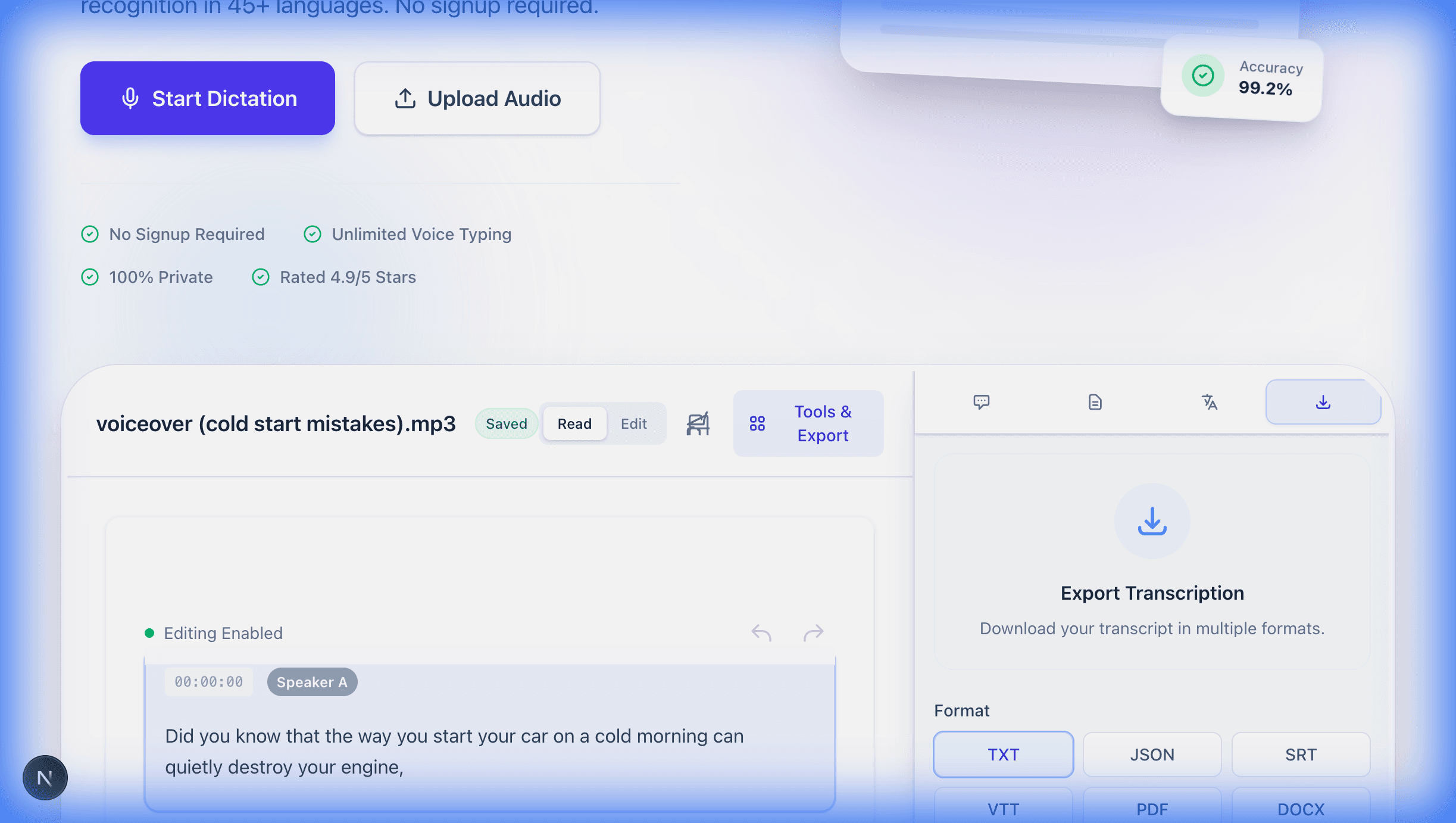
Speech-to-text technology turns recorded speech into written language. This tool uses a file-based workflow: it records or accepts a complete audio or video file, sends that file to the transcription service, and returns text that you can review and edit.
Start with a recording that contains audible speech. You can record a voice note in the workspace or upload an existing file from a phone, computer, messaging app, meeting platform, or camera.
After you choose Transcribe, the service analyzes the audio signal and predicts the words that best match the spoken sounds and context. It can also return a detected language and timing information when those details are available.
The returned transcript opens in an editable workspace. Correct uncertain wording, add formatting, copy the text, export it, or use the transcript as the source for the assistant, summary, and translation tools.
The upload control accepts common audio and video containers, including MP3, WAV, M4A, FLAC, OGG, AIFF, WMA, OPUS, AAC, MP4, MOV, AVI, MKV, and WebM. Choosing a format-specific workflow can help you prepare the right source file and export.
MP3 is useful for interviews, lectures, and shared recordings because it is widely supported and usually smaller than an uncompressed file. The transcript still needs review when compression, noise, or low volume obscures speech.
For preparation and review details tailored to this format, use the MP3 to text conversion guide before submitting an important recording.
M4A, AAC, OGG, and OPUS are common on phones and messaging apps. You can upload the saved recording directly when its file extension is accepted; there is no need to turn every voice note into MP3 first.
Recordings saved by Apple devices can follow the M4A to text workflow for format-specific checks.
WAV and AIFF files often preserve more of the original signal, although a larger file alone does not guarantee a better transcript. Microphone placement, clipping, overlap, and background noise still matter.
For lossless or studio-style recordings, review the WAV to text guide and its quality checklist.
MP4, MOV, AVI, MKV, and WebM files can be submitted when the spoken soundtrack is the information you need. The service transcribes audible speech from the media rather than describing what appears visually in each frame.
For interviews, presentations, and camera footage, the MP4 to text workflow explains how to prepare video audio for review.
An editable transcript is useful for reading, while subtitles also need timing data and a subtitle file structure. Pro accounts can export SRT and VTT after the transcript has been checked.
If captions are the final deliverable, follow the audio to SRT subtitle guide to review timing and line breaks.
A familiar extension does not prove that a file contains playable audio. Confirm that the recording opens, contains speech, and is not empty before uploading. If a device produced an unusual format, export a supported copy without repeatedly recompressing it.
The transcription service can detect and transcribe multiple spoken languages, but the result still depends on the language, accent, audio quality, and clarity of the recording. The website interface is localized in 13 languages, and the active translation workspace currently offers 13 target-language choices.
You do not have to make a universal accuracy assumption from a language label. Submit the recording, check the detected language shown with the result when available, and review whether names, mixed-language phrases, and local expressions were interpreted correctly.
For a focused bilingual example, see the Spanish audio transcription guide and its review criteria.
The interface is available in English, German, Spanish, French, Italian, Portuguese, Russian, Chinese, Arabic, Japanese, Polish, Dutch, and Vietnamese. Interface language changes labels and guidance; it does not force the uploaded recording to use the same language.
After a transcript exists, the translation tool offers English, German, Spanish, French, Italian, Portuguese, Russian, Chinese, Arabic, Japanese, Polish, Dutch, and Vietnamese. The target menu is a separate feature from automatic detection of the recording language.
Once the transcript is ready, the workspace can use that text as context for three separate tasks. These tools do not replace the transcript; they help you question it, condense it, or create a translated working version.
Use the AI chat panel to ask questions grounded in the transcript, such as which decisions were made, what dates were mentioned, or which follow-up tasks appear in the conversation. Check the cited substance against the transcript before acting on it.
The summary tool condenses the transcript so you can scan the main ideas before reading important passages in full. A summary can omit nuance, qualifications, or minority viewpoints, so it should be used as a navigation aid rather than a replacement for review.
Choose a target language after transcription to create a translated version of the text. Translation quality varies with context and terminology; names, figures, legal language, medical language, and technical terms should be checked by a fluent or qualified reviewer.
Voice messages are easy to send but difficult to search, quote, or scan quietly. Save or share the actual audio file to your device, upload it in the workspace, wait for processing, and then review the editable transcript.
WhatsApp voice messages commonly use OGG or OPUS audio. Save or share the voice-note file from the phone, then select that file in the uploader. If the operating system changes the container during sharing, confirm that the resulting file still plays before submission.
For phone-recorded messages and saved clips, the voice memo transcription guide covers a complete mobile-to-text workflow.
Apple Voice Memos often produce M4A audio, while Android recorder apps may create M4A, AAC, OGG, or another supported format. Upload the original clear recording when possible, because forwarding and repeated compression can make quiet speech harder to recognize.
If you need to capture a new message in the browser, use the voice recorder transcription workflow from recording through review.
Export or save the voicemail audio rather than playing it into another microphone when the device allows that option. Direct audio usually avoids room echo and a second layer of compression, although names and callback numbers still need careful checking.
For callback details and message triage, follow the voicemail transcription guide before relying on the text.
Transcription creates a searchable working document from spoken material. The most useful workflow depends on whether you need to find evidence, prepare content, capture decisions, make subtitles, or create a text version for accessibility and review.
A transcript helps producers find quotations, outline episodes, draft show notes, and identify segments that need correction. Speaker names, brands, and time-sensitive claims should be checked against the audio before publication.
For episode preparation and editorial checks, use the podcast transcription workflow as the format-specific reference.
Searchable text can make decisions, questions, and themes easier to locate than scrubbing through a long recording. Confirm consent and institutional rules before recording, then distinguish verbatim statements from any later AI-generated summary.
Recorded thoughts can become a draft that is easier to edit than a blank page. A transcript can also provide a text alternative for spoken material, but accessibility publishing may require speaker identification, sound cues, timing, and manual correction beyond raw transcription.
There is no honest single accuracy percentage for every recording. Results change with the spoken language, microphone and codec quality, background noise, overlapping speakers, distance from the microphone, pronunciation, and the vocabulary used.
Use the original recording when possible, keep speech at a steady audible level, and avoid clipping. If you control the recording, place the microphone close enough for clear speech and reduce music, echo, wind, and competing conversations.
Names, phone numbers, email addresses, dates, prices, measurements, quotations, and specialist terms can change meaning when one character or word is wrong. Compare these details directly with the audio before sharing or using the transcript.
The transcript is a model-generated representation of the recording, not proof that every word is correct. A summary or chat answer adds another interpretive layer. Keep the audio, corrected transcript, and derived AI output conceptually separate so readers know which source they are using.
You can test a recording of up to 5 minutes without an account. A free account includes 15 transcription minutes per day and 10 AI calls per day. Files are uploaded securely to the remote transcription service for processing.
Anonymous use is intended for short trials. A free account provides the stated daily transcription and AI allowances. Pro is listed at $9 per month or $84 per year and is intended for people who need the paid workflow and export options.
You can edit and copy the result in the workspace. Free accounts can export TXT and JSON. Pro accounts can additionally export SRT, VTT, PDF, and DOCX, so the right choice depends on whether you need plain text, structured data, subtitles, or a document.
The recording is sent to a remote service; it is not transcribed entirely inside your browser. Before uploading confidential, regulated, or third-party audio, confirm that you have permission and that the workflow satisfies the privacy, retention, contractual, and organizational rules that apply to the material.
Clear answers about recording, supported files, languages, editing, AI tools, account limits, exports, and remote processing.